Space Invaders: Play classic game on your phone
Create a Space Invaders Game with JavaScript in WebViewer
In this tutorial, we’ll create the classic game Space Invaders. As with Tetris, we consulted Google Gemini 3 Pro to build the core game in JavaScript running inside a WebViewer. App Inventor controls this JavaScript.
Since the complex game logic is handled by AI-generated JavaScript, the App Inventor setup remains very simple.
Are you in a hurry? Download the complete .aia file (with AI + JS Engine) for just $9.95. ✅ Instant Download ✅ No Sign-up Required
What You Will Learn in This Tutorial
- Running JavaScript in a WebViewer
- Passing data between the app and the WebViewer
Components Used
Button, Label, WebViewer, HorizontalArrangement, Sound
Blocks Used
No special blocks are required.
Designer
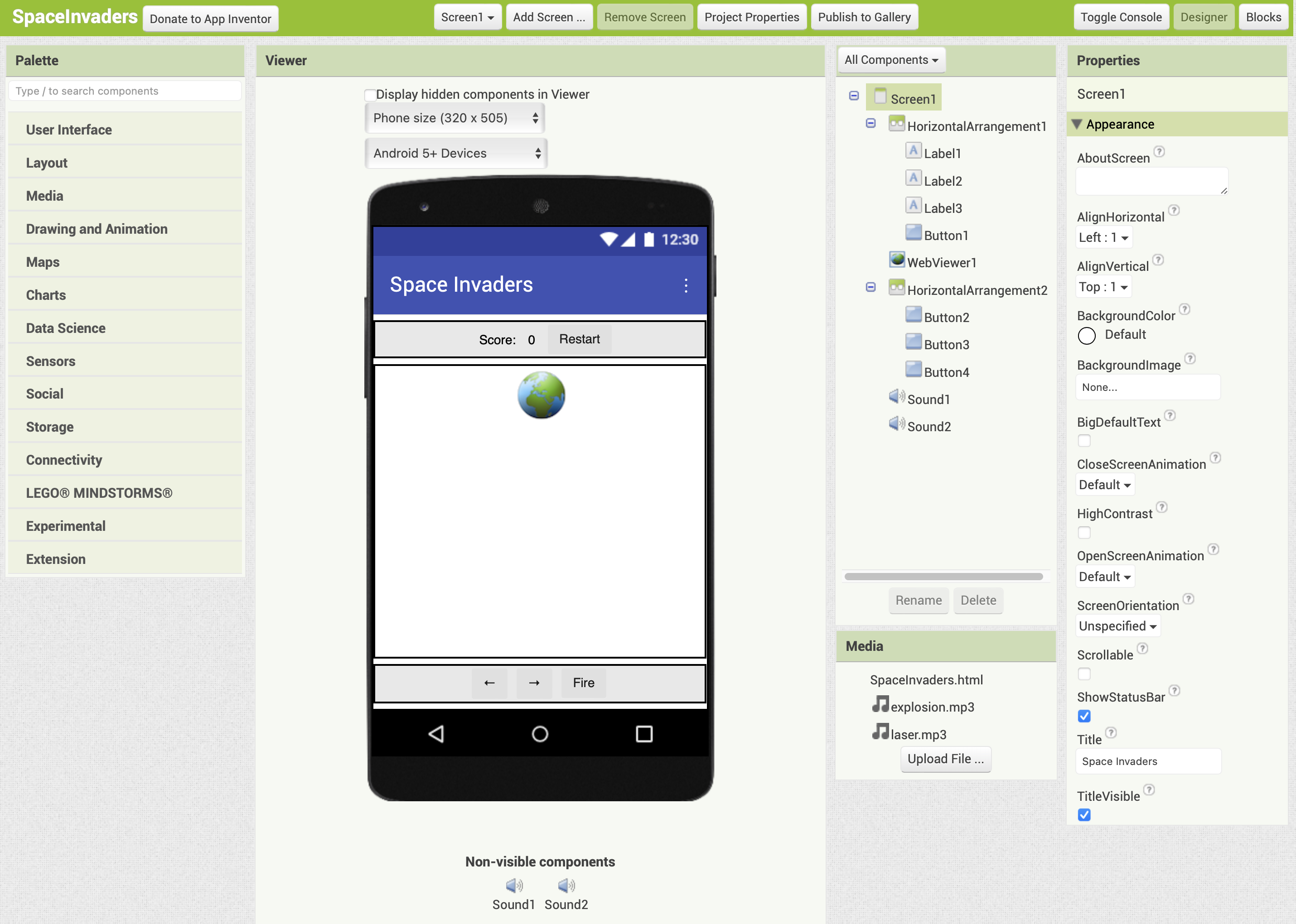
Set the title of Screen1 to “SpaceInvaders".
Download the files SpaceInvaders.html, laser.mp3 and explosion.mp3 from the download section at the bottom of this page, and then upload both files to the Media section using the Upload File button.
From the Layout palette, add two HorizontalArrangement components to the Viewer. The components will be named HorizontalArrangement1 and HorizontalArrangement2. For HorizontalArrangement1, set the AlignHorizontal property to "Center", the AlignVertical property to "Center" and the Width to "Fill parent". For HorizontalArrangement2, set the AlignHorizontal property to "Center" and the Width to "Fill parent".
From the User Interface palette, add a WebViewer between HorizontalArrangement1 and HorizontalArrangement2. The component will be named WebViewer1.
From the User Interface palette, add three Label components and a Button component to the HorizontalArrangement1. The components will be named Label1, Label2, Label3, and Button1, respectively.
From the User Interface palette, add three Button components to the HorizontalArrangement2. The components will be named Button2, Button3, and Button4, respectively.
Set the properties as follows:
- Label1: Text=(leave blank)
- Label2: Text=Score:
- Label3: Text=0
- Button1: Text=Restart
- Button2: Text=←
- Button3: Text=→
- Button4: Text=Fire
Finally, From the Media palette, add two Sound components to the Viewer. The components will be named Sound1 and Sound2. Set Source property to the laser.mp3 and explosion.mp3, respectively.
At this point, the Designer screen should appear as shown below.